Four windows open,
alt-tabbing between them?
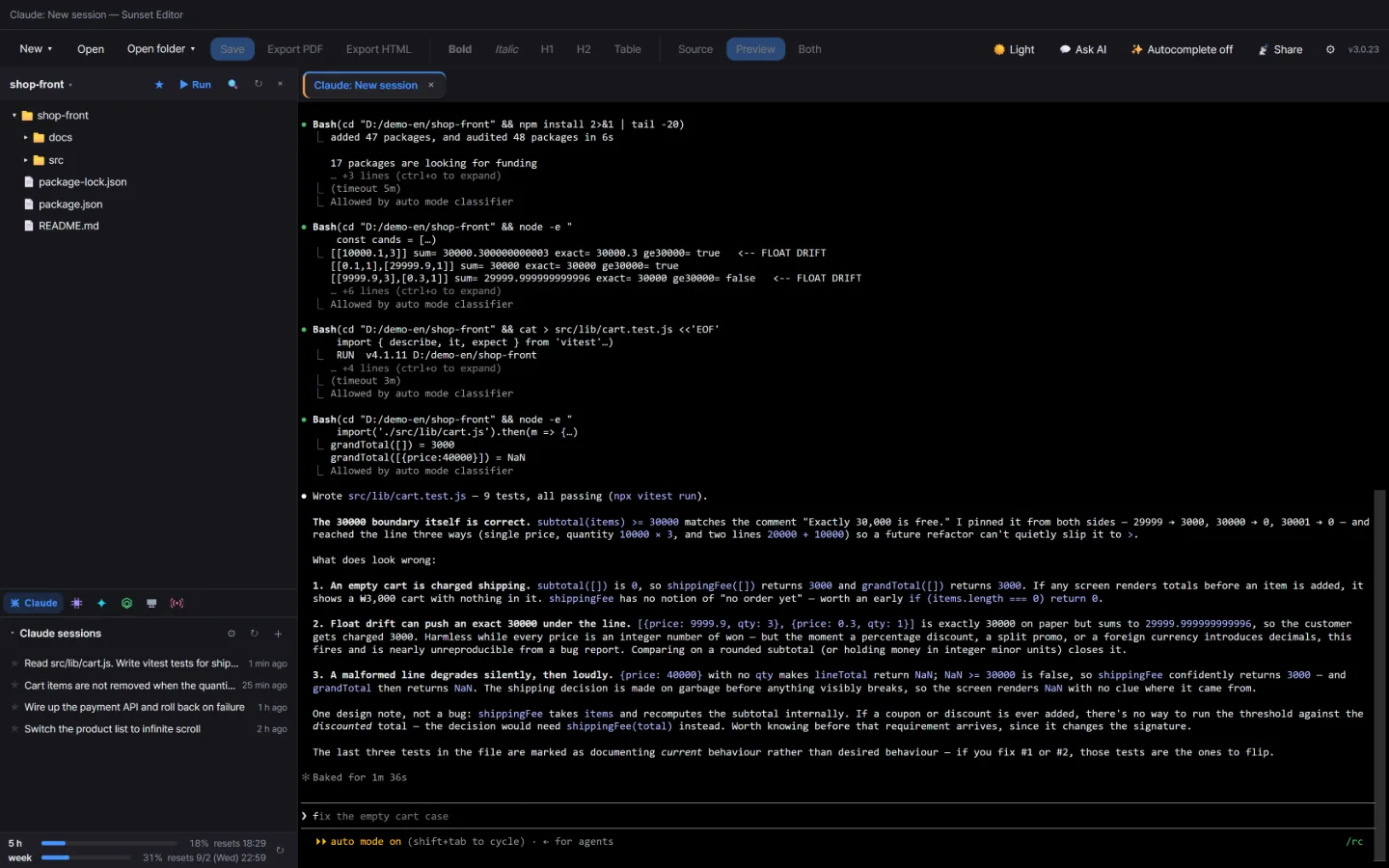
Sunset Editor runs your Claude, Gemini and Codex sessions as tabs in one window. One AI can hand work to another, and you can stream that screen straight to your team. It is a workshop for one person running several AIs.
No admin rights needed to install. New versions land on their own.
A workshop for people who
outgrew a single AI
Once you hand work to an AI, a moment comes where one is not enough. One writes code, one tidies the docs, one checks the finished thing. And from that moment on, how many windows you have open is more annoying than the actual work. Sunset Editor is a program built to remove exactly that annoyance.
Work alone, then run several,
then show your team
In the order things grow. Somewhere in here is where you are right now.
Open a folder and every chat from that project is there
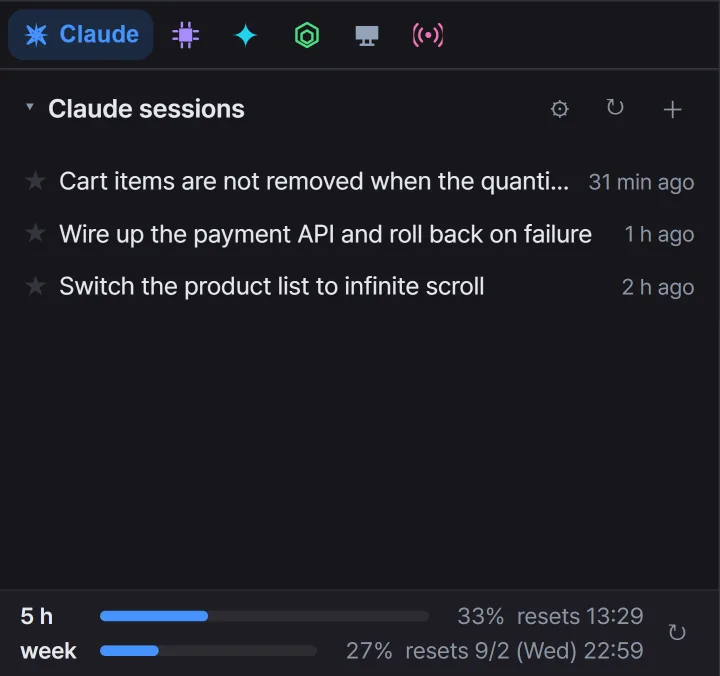
No hunting for yesterday's conversation. Open a folder and the AI sessions from that folder appear newest first; click one and you carry on that same conversation. Rename one, or star it (★), and it stays at the top even in other folders.
One tab per session. No reason left to open several windows.
Different providers, same handling
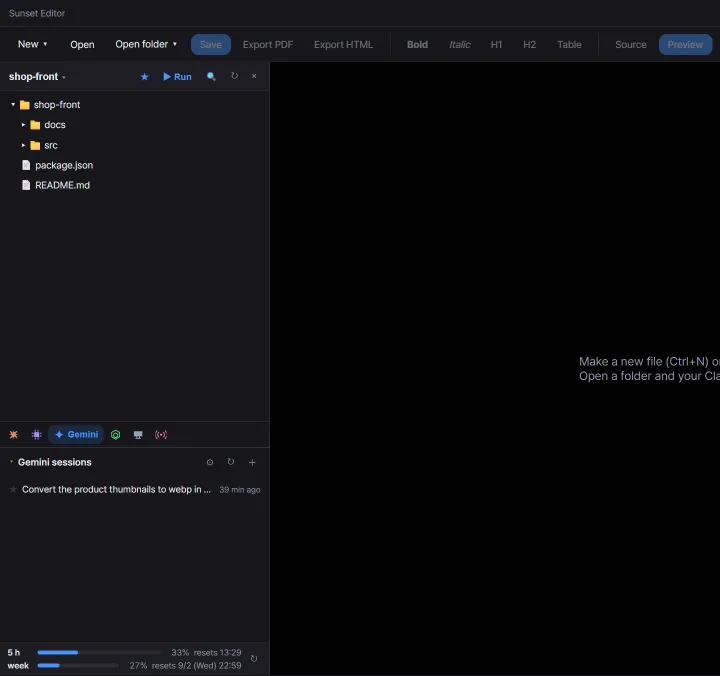
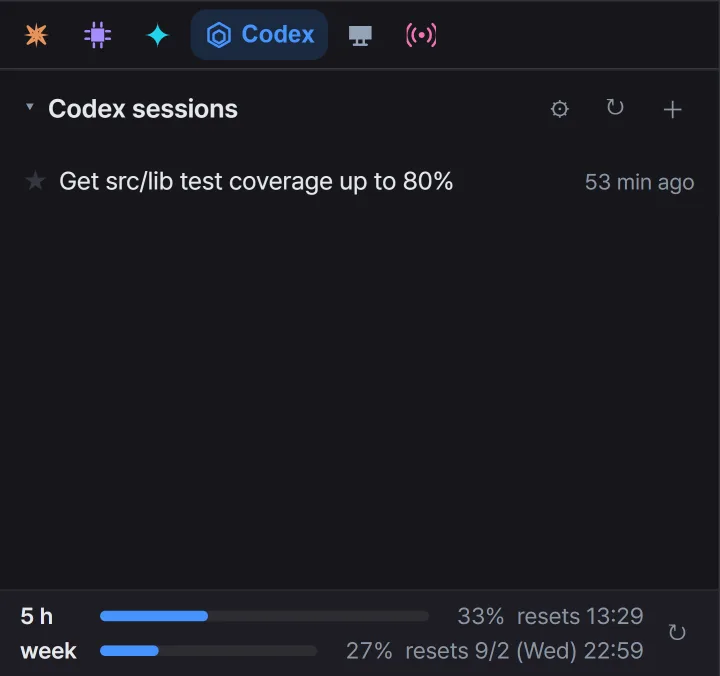
There is no reason to drive three CLIs three different ways in three different windows. Switch the sidebar tab and you get that provider's session list; everything else is identical — resume, rename, star, new session.
Each provider has its own tab colour, so you can see at a glance which AI you are talking to.
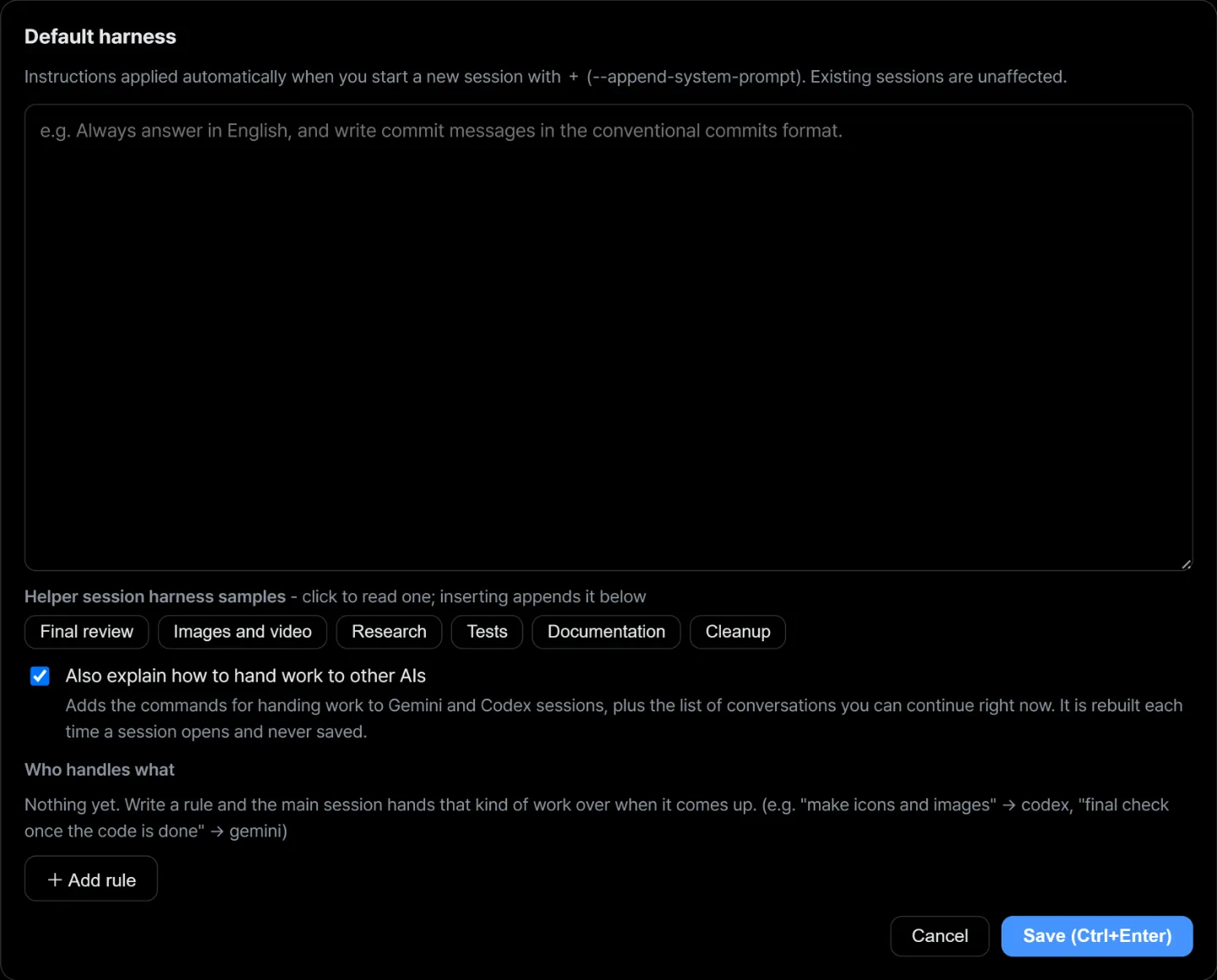
Give each session a standing character
A harness is the instruction a session always follows. Write it once and you stop repeating yourself. Things like "write the test first", "answer in English", "ask before changing anything".
Six samples for helper sessions are built in — final review, images and video, research, tests, documentation, cleanup. Click one to read it and drop it straight in.
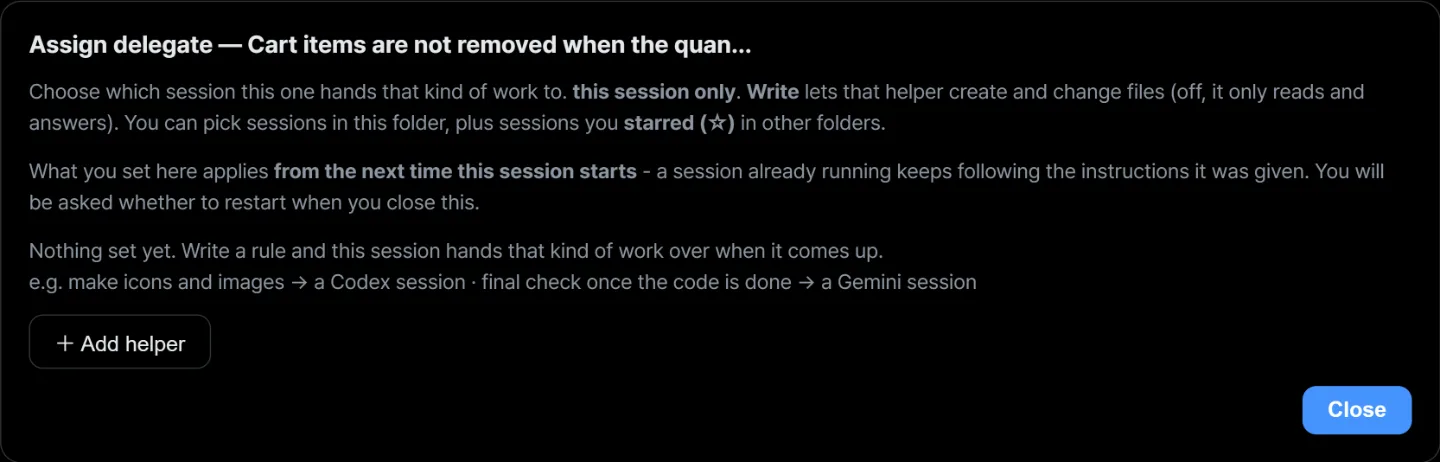
One AI hands work to another
Call codex exec … directly and the caller blocks until it finishes.
Which means you cannot actually run several AIs at once.
Delegation leaves a request and returns immediately. The app picks that request up and
opens a tab like Codex: Delegated 3 to run it —
the progress is right there on screen. The session that asked carries on with its own work.
Walk away and still watch it run
Sometimes you set something long going and leave. Lunch, home time, the train. Watch that screen on your phone. See how far it got, and what it stopped to ask.
If it is waiting, type a line from your phone and set it going again. No need to be back at the desk.
If you have a team, just send the link — they install nothing and sign in to nothing. They can watch; only the person who opened the room can type.
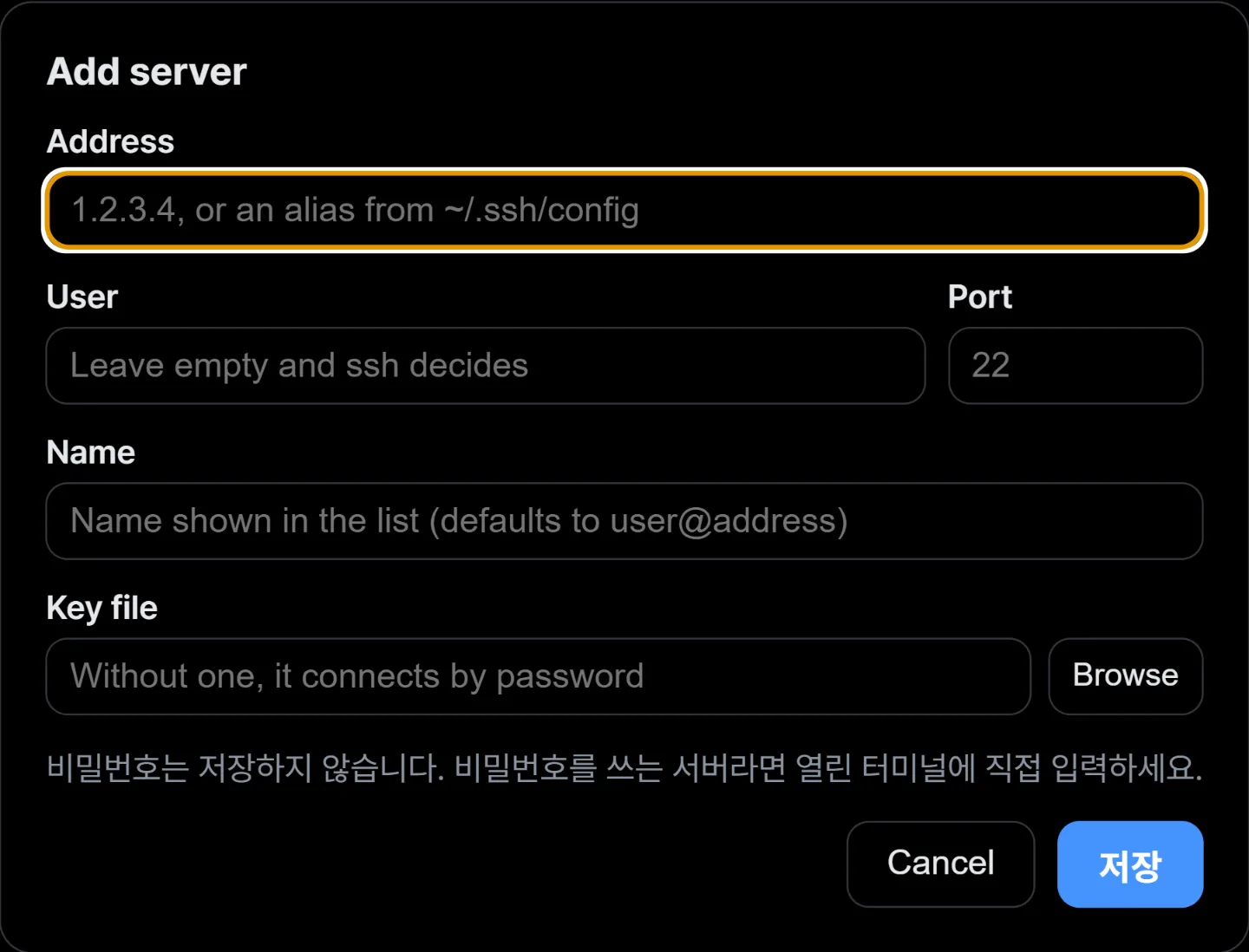
More on live roomsSSH servers open as tabs too
Save the address, user, port and key file once, and every click in the list opens that
server's shell in a tab. It uses the OpenSSH that ships with Windows, so the aliases in
your ~/.ssh/config work as they are.
Passwords are never stored. Pick a key file and it is moved into a safe folder, so you never hit ssh refusing a private key that sits in a world-readable folder.
It is not only terminals
The things you end up opening anyway, in the same window.
Docs and code
Edit Markdown as formatted text; open code files with syntax highlighting. Export to PDF or HTML.
API testing
A small Postman is built in. Save a request as .api.json and share it with your team.
Run a web project
If there is a package.json, a ▶ Run button appears. Log on the left, built-in browser on the right.
Three steps and you are done
Download
One installer. No admin rights needed — it installs per user.
Run it
It opens straight away. After that, new versions are downloaded in the background and applied on the next restart.
Open a folder
Open the folder you work in and its AI sessions appear in the sidebar. Start from there.
The AI CLIs you want to use (claude, gemini, codex) have to be installed separately.
A provider that is not installed shows a note instead of a list. The full order is in the guide.
One run is enough to tell
Count the windows you have open right now, then see whether that number becomes one.
Windows 10 or later · 64-bit